 Dcamera
 capture guide
Record front and back cameras together on iPhone.
Use Dcamera on a compatible iPhone to capture the scene and your reaction in one take. Choose a split layout before recording, then save the combined result to Photos.
Set up a short test recording.
- Open the camera. Allow camera access. Allow microphone access when you want video sound.
- Choose Video. Check that both front and back previews are visible. A second preview is the practical check that your current setup supports both cameras.
- Pick a composition. Open the scene and composition controls. Use picture-in-picture for a scene with a small reaction, side-by-side for equal emphasis, or top-and-bottom for a stacked composition.
- Check framing and sound. Keep both lenses clear, make a short test and listen to the saved result before recording something you cannot repeat.
- Record, review and save. Check the save status on the result screen. Grant Photos access when asked. If the recording is not saved, use Save to Photos or retry a failed save. Confirm the saved result in Photos before leaving.
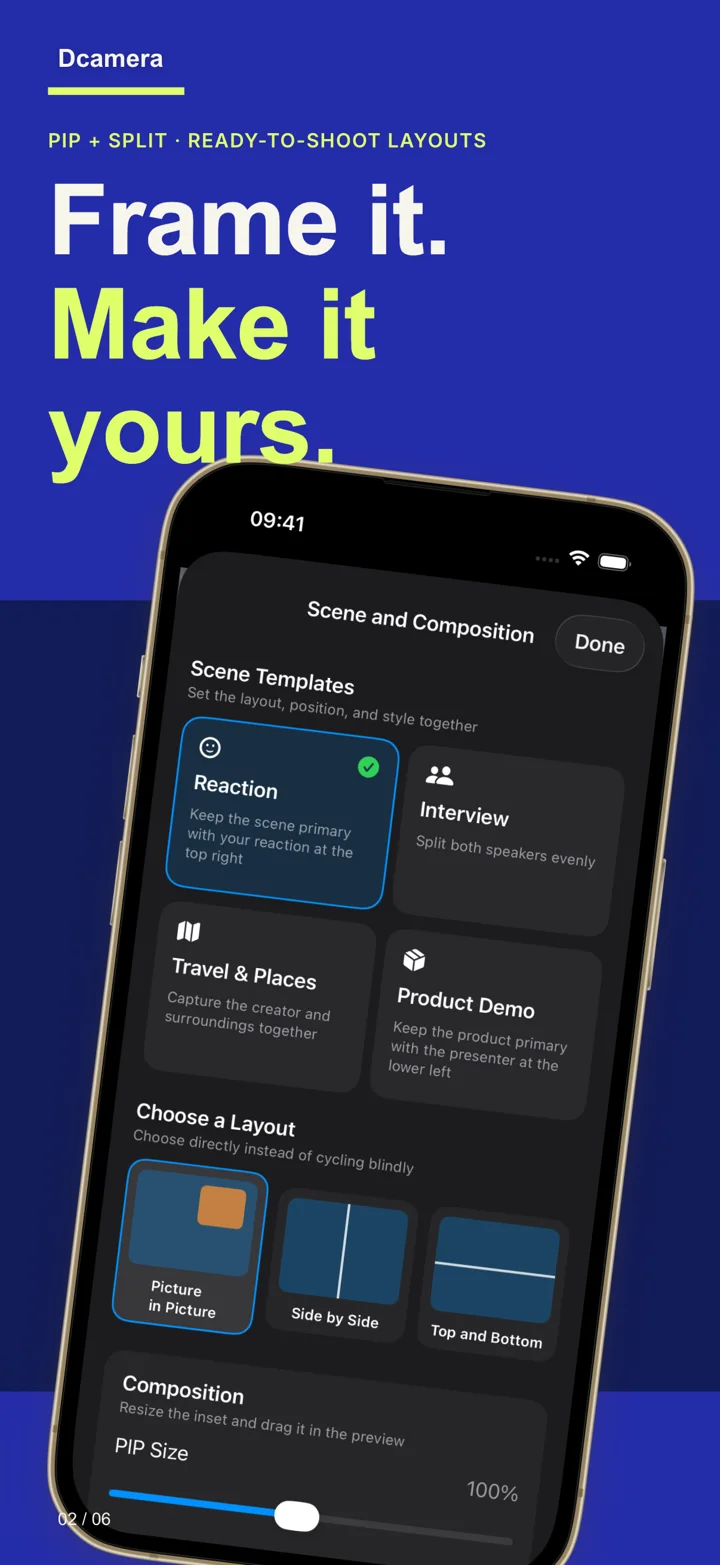
Which layout should I use?
Picture-in-picture: put the scene first and keep your face in a smaller inset. Side-by-side: give the two views similar visual weight. Stacked: place one view above the other when it fits your intended composition. Check important faces and details in both previews before recording.
Can I save separate front and back videos?
With lifetime Pro, Dcamera saves the composite video plus both camera originals. Pro also supports local reframing after recording. Free saves include the combined result with a watermark. Compare the full Free and Pro feature list.
Learn when to use the composite and each separate camera file. Originals must be captured with Pro active; upgrading later cannot recreate missing original files.
Why is 4K or Ultra Wide unavailable?
Simultaneous front and back capture is limited by the camera formats the iPhone can run together. A camera or resolution available in a single-camera app may be unavailable in the current dual-camera configuration. 4K requires Pro and a supported device format. Ultra Wide also depends on the device and configuration.
Does the built-in iPhone Camera also offer dual capture?
Apple offers Dual Capture video in Camera on supported models. Check Apple’s current iPhone recording guide for your model and iOS version. Dcamera has its own layouts, photo and Live Photo workflows, with separate video originals and local reframing in Pro. Support in Apple’s Camera does not establish which formats Dcamera can run on a particular device.
How many free recordings can I save?
Three successful saves per day, shared between photos and videos. A failed or cancelled save does not consume the allowance. Free composites carry a watermark; lifetime Pro removes it and unlocks unlimited saves.