 Dcamera
 capture guide
Film a travel vlog with both iPhone cameras.
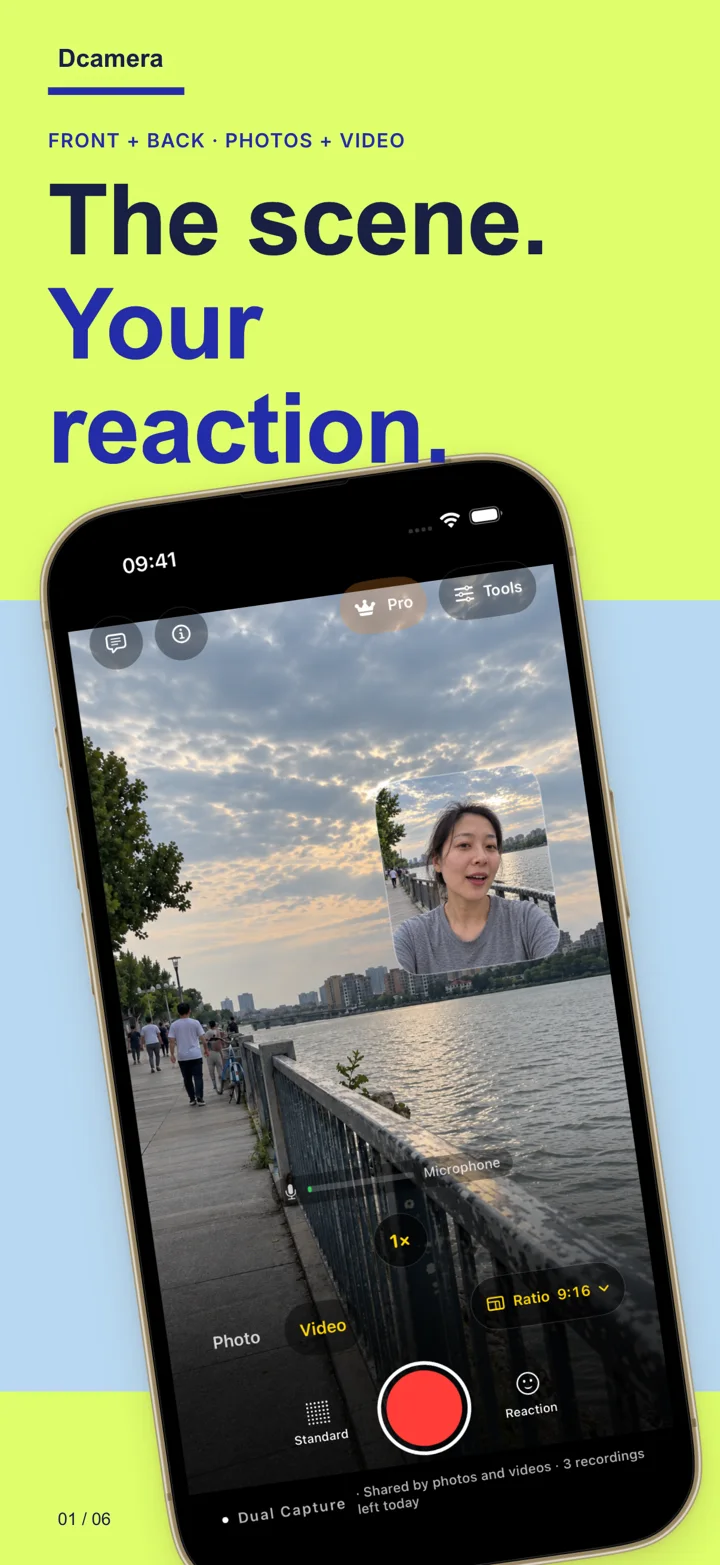
A travel vlog often needs two things: what you are seeing and how it feels to be there. A compatible iPhone and Dcamera can capture both at the same time.
1. Give the location the main frame.
Choose the Travel & Places scene template or a picture-in-picture layout. Point the back camera at the view and use the front-camera inset for your reaction. Check that the inset does not cover the detail you want people to see.
2. Say one thing about the moment.
Record a short observation while the scene is happening: what surprised you, what changed, or what you want to remember. For a planned introduction, prepare a short script and use the teleprompter. Review a test clip to check sound in wind or a busy street.
3. Save a short take before moving on.
Review the result and save it to Photos. Confirm it saved successfully before you leave a location. Keep an eye on storage and battery during longer outings.
4. Keep room for another edit.
The free composite is useful for trying the workflow. If you want frequent saves without a watermark, or the scene and reaction as separate video files, lifetime Pro includes unlimited saves, the composite and both originals. You can also reframe locally after recording. See the exact Pro benefits.
A simple three-shot story.
- Arrive: capture the location and your first reaction together.
- Notice: record a detail while explaining why it caught your attention.
- Reflect: finish with one sentence about the visit.
For another edit later, learn how Pro saves the two camera originals. Confirm Pro is active before recording if you need those files.
You choose what to share. Dcamera processes media on your device and does not upload recordings to a developer server.